
Guide
How to make a paid Discord server (step-by-step guide)
The simplest way to make a paid Discord server, and charge for access to it, is a paid role. Lock your private channels to a role, and give that role only to people who pay. When someone stops paying, the role comes off and the channels disappear for them. This guide covers how that works, the ways to take payments, the setup step by step, and how to price and grow it.
How a paid Discord server works
Discord has no paywall setting for a channel. Every paid server is built from two things Discord already has: roles and channel permissions. You hide your paid channels from everyone except one role, then make that role something people pay for.
Most paid servers keep a free side and a paid side. The free channels are where new people arrive, see what the community is like and find your offer. The paid channels are what they’re buying. You can have more than one paid tier, too: a role for each tier, each unlocking its own channels, and a member can hold more than one.
What’s left is the payment: something has to take the money, give the role, and take it away again when someone cancels or a card fails. That’s where your options differ.
Ways to take payments
There are five common ways to charge for a Discord role. Prices are from each company’s own pages.
- By hand, with a payment link
- Share a Stripe or PayPal link and give the role yourself. Fine for your first few members, but you have to catch every cancellation and failed renewal and take the role away, which is where it breaks down.
- Discord Server Subscriptions
- Discord’s own paid tiers, set up in Server Settings with no bot. Only for US-based owners who are 18 or older, with a US bank account and ID, and the server must be a Community server. Discord keeps 10% of each sale and pays out monthly, after your first $100.
- Whop
- A platform for selling many kinds of digital products. Selling Discord access uses Whop’s Discord app, which adds a 3% fee on top of card processing (2.7% + $0.30 for domestic cards), and sales go to your Whop balance for you to withdraw. A good fit if you also sell courses, files or software.
- LaunchPass
- Paid access for Discord, Slack and Telegram communities. Charging for access is on Premium: $29 a month per community plus 3.5% a sale, with Stripe’s fees on top. A good fit if you run communities outside Discord too.
- A bot connected to your own Stripe, like Lance
- Members pay into your own Stripe account and the bot gives and removes the role for you. Lance is free to use, with 2.5% per sale plus Stripe’s fees, and members check out without leaving Discord.
For the full comparison with sources, see Whop alternatives and LaunchPass alternatives. The steps below use Lance.
Set it up in five steps
Make a paid role and lock your channels to it
In Discord, open Server Settings → Roles and create the role you want to sell, for example @VIP. It doesn’t need any special permissions of its own; all it does is unlock channels.
Next, put every paid channel in one category, such as “Members only”. Open the category’s settings → Permissions, turn off View Channel for @everyone and turn it on for @VIP, then sync the channels inside to the category. Anyone with the role sees the channels; anyone without it doesn’t even know they’re there. Setting it once on the category is easier than on each channel, and channels you add to it later follow the same rules.
Two things people forget: staff roles without Administrator need View Channel on the paid category too, and you should leave a few channels free (more on that below).
Add Lance to your server
Add the Lance bot and pick your server. Then, in Server Settings → Roles, drag the Lance role above every role you sell. Discord only lets a bot give roles below its own, so this is the step that makes the rest work. Why Lance needs to be above your paid roles
The Lance dashboard keeps a setup checklist, so you can see what’s done and what’s next.
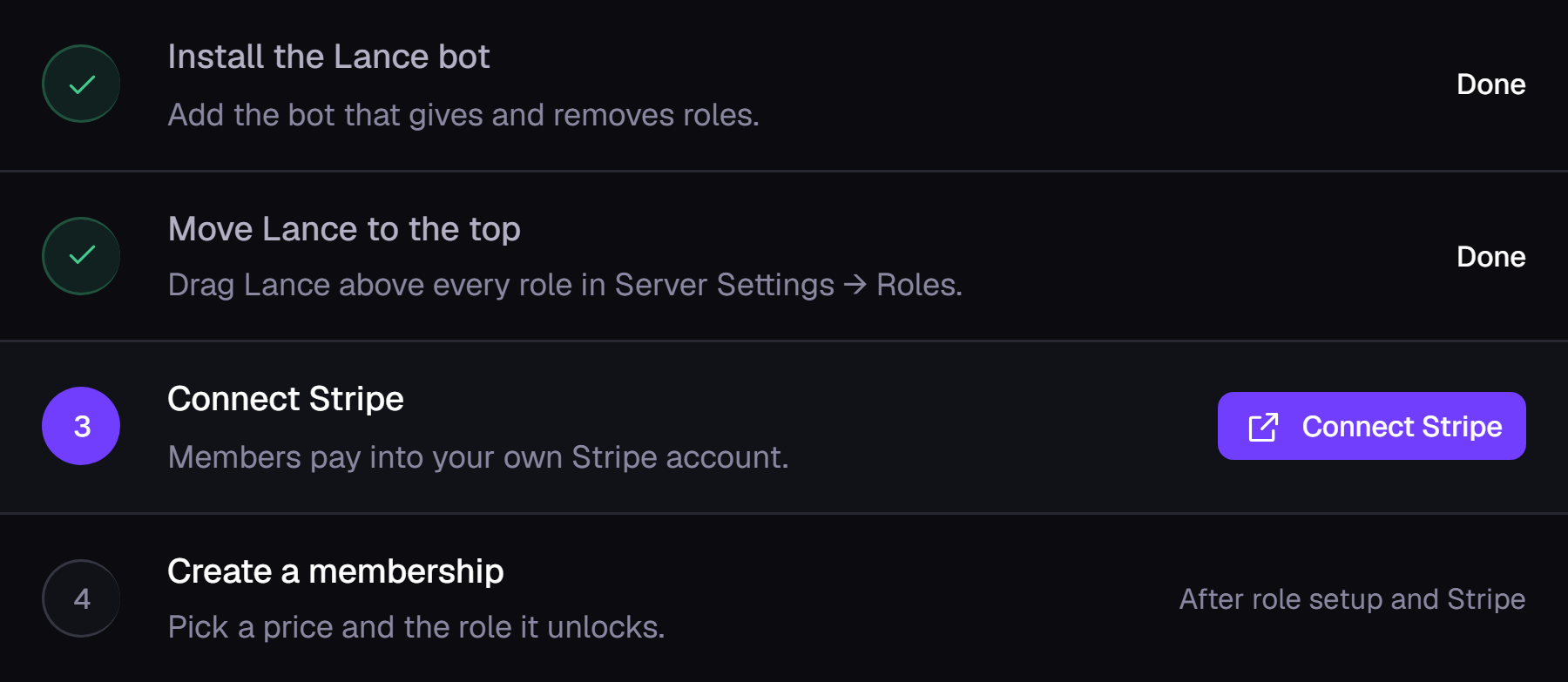
Connect your Stripe account
In the Lance dashboard, open Settings → General → Integrations and press Connect Stripe, then pick the account members should pay. Members pay straight into your own Stripe account; Lance never holds your revenue. Connect your Stripe account
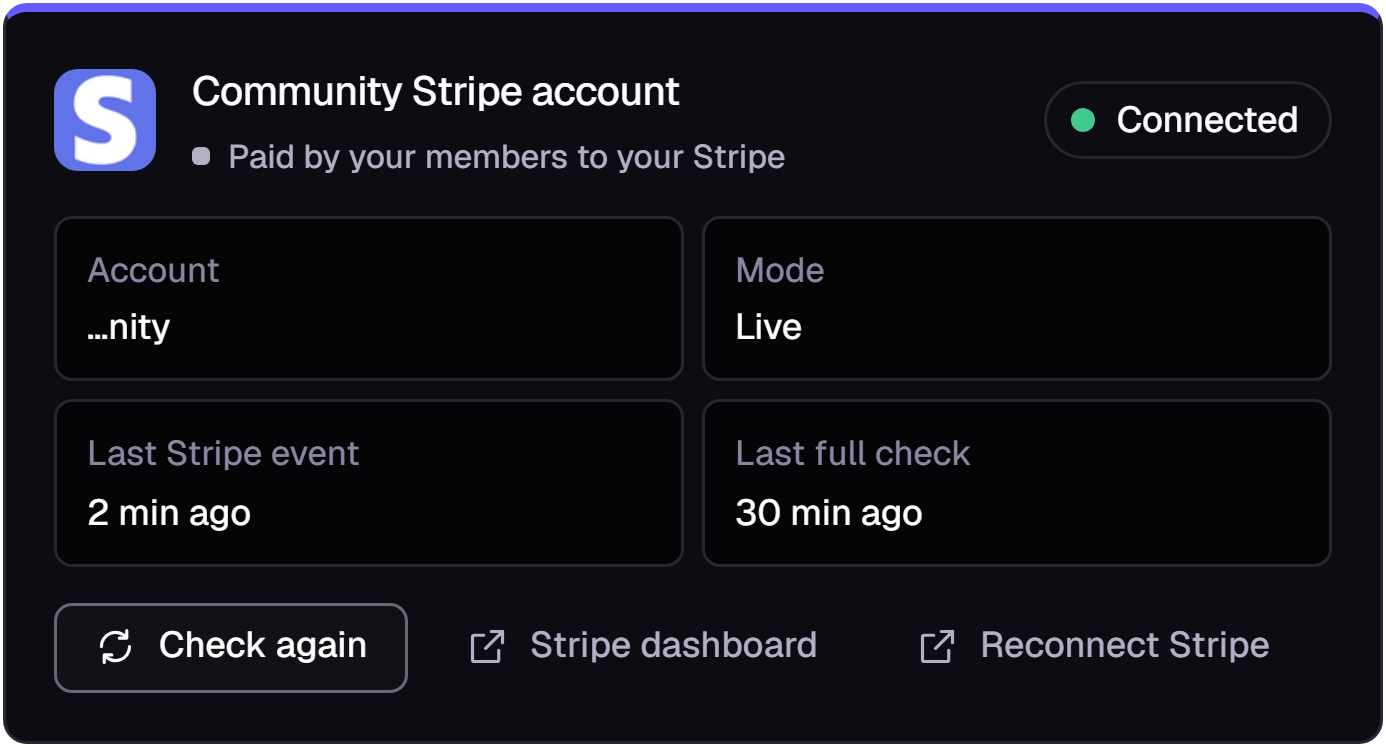
Set a price for the role
Run
/createin your server, pick the role, enter the price and choose how often members pay: weekly, monthly, yearly, a custom period, or once for permanent access. Lance makes the Stripe checkout for you, so there are no products or payment links to build in Stripe yourself.The dashboard has the same form with more options: a description, picture and video for the membership, a free trial, a sale price (and a limit on how many buyers get it), and promotion codes. Create a membership
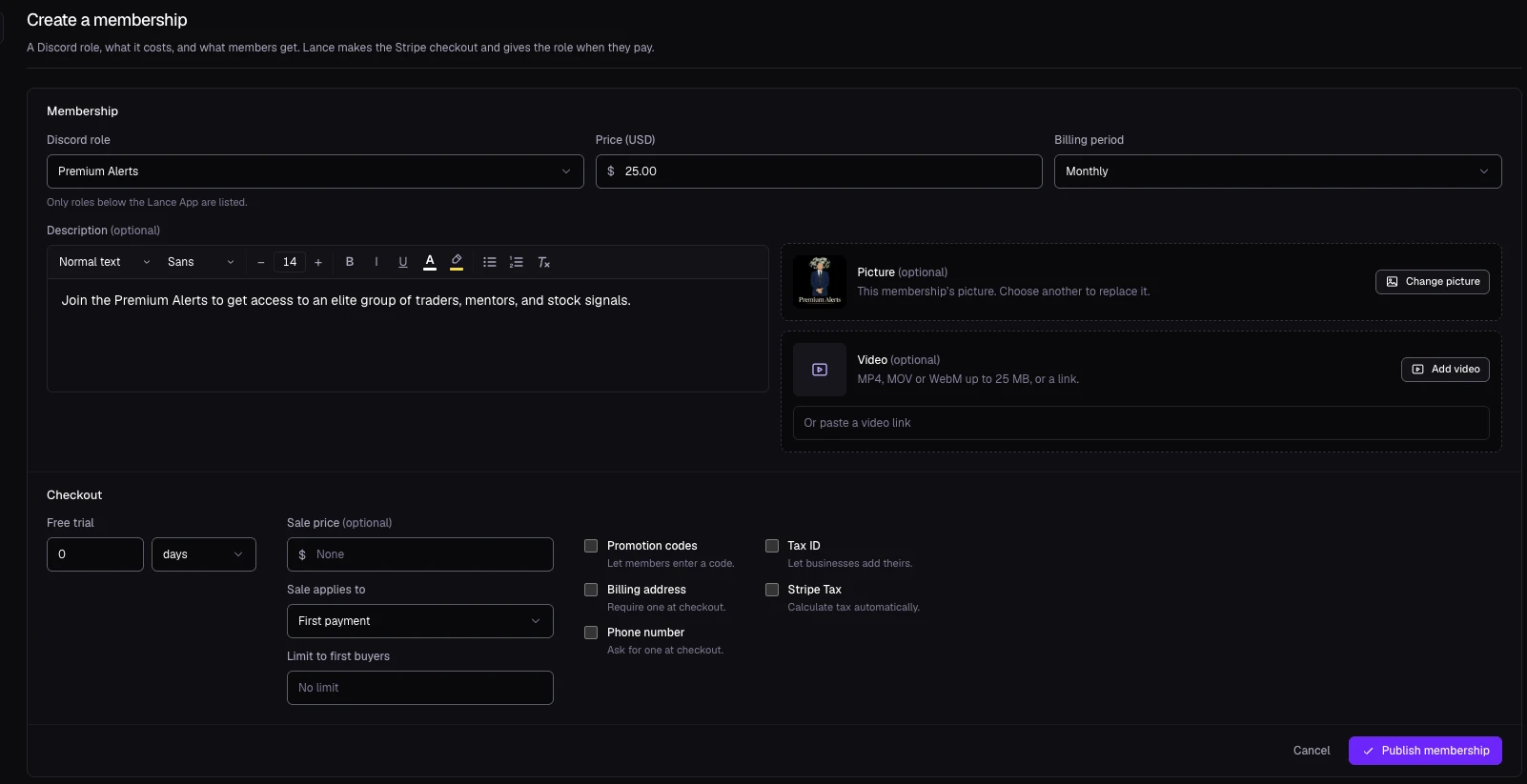
Post it where members will see it
Run
/postin a channel. Lance posts the membership with its price and a Get access button. A member presses it and checks out privately, right inside Discord, and Lance gives them the role as soon as the payment goes through. Post a membership in a channelYou also get a join page: a link you can share anywhere outside Discord, such as your bio, videos or newsletter. Share your join page



 The VIP Lounge · Membership


What to put behind the paywall
Paid channels work when they give members something the free ones don’t. If the paid side is just more of the free side, people cancel. Things members pay for:
- Your best calls, alerts or analysis: trading, sports picks, drops and restocks
- Early access to releases, episodes or content
- Direct access to you: Q&A, coaching, reviews of members’ work
- Live sessions in a voice or stage channel
- A smaller, closer group than your free community
Keep a few channels free: an announcements or preview channel shows newcomers what they’d get, and is where you post your offer. A server that’s entirely locked is hard to sell.
How to price it
Start with one paid role at one price. You can add tiers later; three tiers on day one mostly confuses people. Monthly is the usual default. Offering yearly too gives your most committed members a reason to stay, and some people would rather pay once, so a one-time price for permanent access is worth considering. Sell one-time, permanent access
A free trial lets people see the paid channels before they pay. With Lance, trials can run up to 730 days, and the member gets the role when their first paid invoice goes through. Free trials A sale price or promotion code helps at launch, for giveaways and for partners.
When you raise your price, let members who already pay keep theirs. Changing the price on people mid-membership is the quickest way to lose them. In Lance, a new price is for new buyers, and members already paying keep their price. Change a price
Growing your paid community
Bring people in
Almost every member will come from your own audience: your free channels, socials, videos, podcast or newsletter. Post the membership in a free channel everyone sees, and put your join page link wherever you already talk to people. Reviews from paying members show on the post, which helps new people decide. Membership reviews
Keep members
Show up on a schedule people can count on, and answer questions quickly. Members can message your team privately with /support, and you answer from Discord or the dashboard. Messages from members The grace period keeps people whose card just failed from losing access while Stripe retries it.
Grow what works
The dashboard shows every member, what they pay for and where they stand, and which memberships sell best, so you can see what to make more of. When there’s too much for one person, invite admins with only the permissions they need; your billing and Stripe stay yours. Invite an admin
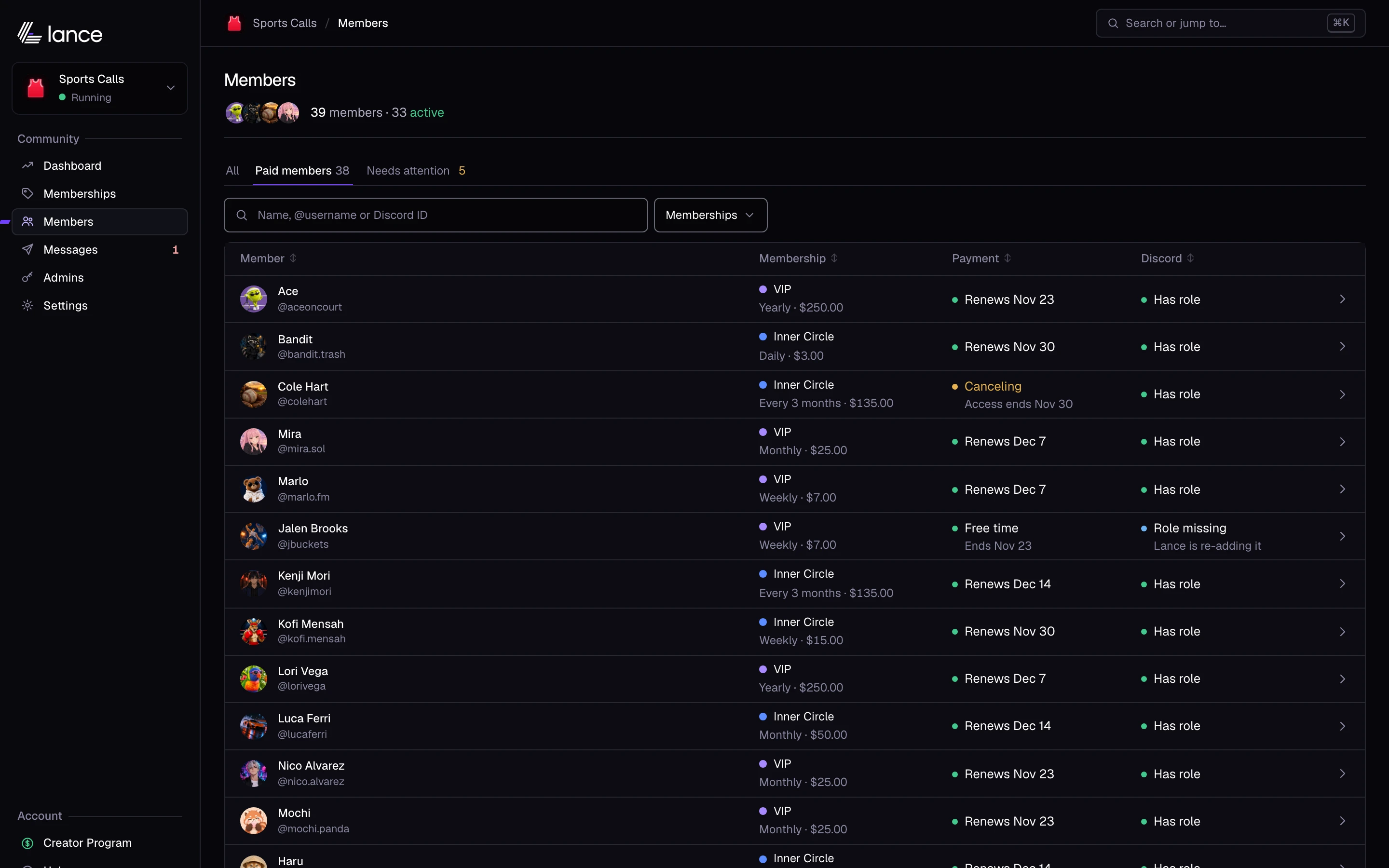
After members start paying
- What happens when a member cancels?
- They keep the role until the time they paid for runs out, then Lance removes it. If they subscribe again, they get it back. When a membership ends
- What if a payment fails?
- Stripe retries the card, and the member keeps their role through your grace period while it does. The grace period
- What about refunds and disputes?
- A full refund ends access. Partial refunds and disputes are held for you to check, and Lance leaves the role as it is meanwhile. Refunds and disputes
- Can I let someone in for free?
- Yes. Give them free access from their member page in the dashboard, for a set time or until you remove it. Give a role for free
- My members already pay me another way. Can I move them over?
- Yes. Connect each paid role to the Stripe checkout members already use, then post
/integrateso they reconnect. Nobody pays twice. Bring in members who already pay you - What does it cost?
- Lance is free: no monthly fee, and 2.5% of each member payment. Stripe’s own processing fees are separate. How the Lance fee works
Want the whole picture? See how Lance works or browse the Help center. More guides: how to set up a Discord paywall, how to sell Discord roles with Stripe, other ways to monetize a Discord server, and what the Lance bot does.